We use cookies
Essential cookies keep facy.ai working. With your permission we also use analytics and advertising cookies to understand how the site is used and to measure our ads. Privacy Policy
AI Video Editor
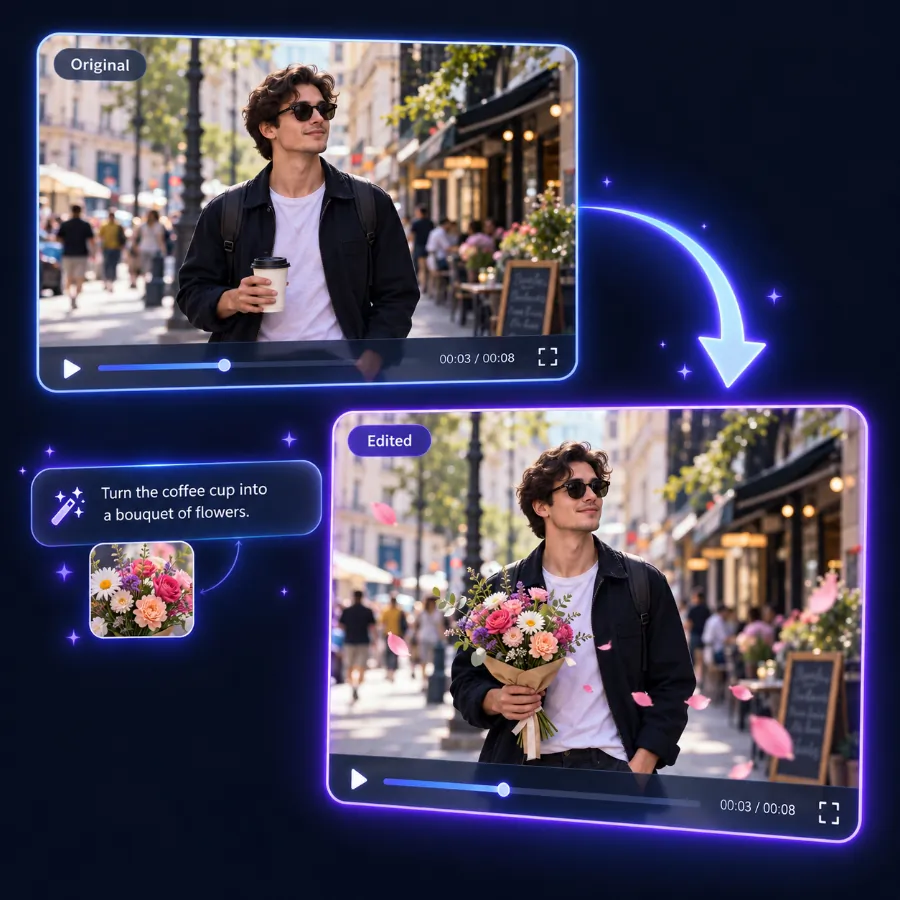
Edit video with AI for free: upload a clip, describe the change in plain words, add reference images or audio, and download the edited video - or extend your clip with new AI-generated footage.
- Free to try - one 3-second edit on the house, no card needed
- Edit by typing: replace objects, change outfits, swap backgrounds, restyle
- Multi-input: video + prompt + reference images + audio in one go
- Extend any clip: add new AI footage before or after it, seamlessly
- Up to 1080P, and clips up to 60 seconds with a plan; privacy-first auto-deletion
What Our Users Say
AI Video Editor: Edit Video with AI from a Simple Text Prompt
This AI video editor replaces the timeline with a sentence. Upload a clip, describe the change - "swap the jacket for a leather one", "make it a rainy night", "remove the car" - and the artificial intelligence video editing models regenerate every frame with that change while the motion, framing and camera work stay exactly as filmed. Add reference images and audio for precise control, or extend the video with new AI-generated footage before or after your clip. Sign in for free (Google or email) to claim a welcome credit and try it.
Edit video with AI - no timeline, no masks
Classic editors need keyframes, rotoscoping and compositing to change what is inside a shot. An AI powered video editor understands the scene: it finds the object, person or background you name, changes it and keeps lighting, shadows and motion consistent across every frame.
Extend video with AI
Too short a take? The AI video extender adds new footage that continues after the last frame - or plays before the first one - keeping the same people, setting, lighting and camera language. Choose how many seconds to add, describe what happens, and download the whole clip: your original plus the new part, seamlessly joined.
How to edit a video with AI
- Sign in for free to claim the welcome credit (Google or email).
- Upload your video - MP4, MOV, WEBM or AVI - and pick the moment to edit in the trim studio (up to 15 seconds, 3 on the free plan).
- Describe the change in plain words. Be concrete about what changes and say what should stay the same.
- Add references (optional) - images of the object, outfit or person to insert, or an audio track - and refer to them as Image 1, Audio 1.
- Choose the model and quality - VE-Plus (free, 480P/720P), VE-Pro or VE-Ultra (up to 1080P, audio generation).
- Click Edit Video, wait a few minutes and download the result. Queue several edits and leave the page - they wait in "My creations".
Edit video or extend video - two modes, one editor
Edit video mode
Video + prompt is all that is required. Reference images (JPG/PNG/WEBP) show the AI exactly which product, garment or person to put in; audio files (MP3/WAV) give it a soundtrack or dialogue to match. The output keeps your clip's length and aspect ratio.
Extend video mode
Upload the clip, choose after the end or before the start, pick how many seconds to add (up to 20) and describe only the new part: "She closes the laptop, stands up and walks to the window." Reference images can bring a product or outfit into the new footage. The result keeps your clip's aspect ratio and includes the original clip.
Popular AI video editing use cases
Product & e-commerce videos
Swap the product in a hero shot for another colourway or model using a reference image - no reshoot, same motion and lighting.
Social media content
Change outfits, backgrounds and weather in Reels, Shorts and TikToks; restyle clips into anime, claymation or film looks.
Fix the shot
Remove a passer-by, a logo or a distracting object; turn day into night; replace a dull sky.
Make clips longer
Extend a too-short take, add a lead-in before the action starts or an outro after it ends - without reshooting.
AI video editor FAQ
What is an AI video editor?
How do I edit a video with AI here?
What is "Extend video"?
Is the AI video editor free?
Which inputs can the AI video editing tools use?
How long does an AI video edit take?
Can I edit long videos?
Do I need permission to edit a video with AI?
Responsible use & consent
AI video editing is powerful, and it can be misused. Please only upload footage, images and audio you own or have permission to edit, and never use someone else's likeness, voice or copyrighted material without consent. Follow your local laws and our Terms.
- Don't impersonate real people for fraud, harassment or deception.
- Don't upload private, sensitive or copyrighted material without authorization.
- When in doubt, get permission before editing and sharing videos.