
Reference mode is a new way to use Image to Video on Facy. Instead of turning one photo into a video, you hand the AI a set of ingredients and describe the result you want.
The old way: one photo, one starting point
Normal Image to Video is simple. You upload one photo. That photo becomes the first frame of your video, and everything that happens next grows out of that single picture.
This works well when you already have the exact shot you want. But it has limits:
- One photo means one scene.
- Everything in the video must already be in that photo.
- You cannot add a second person, a new object, or a different room without editing the photo first.
The new way: give it ingredients, not a starting frame
Reference mode flips this around. You are not picking a first frame. You are collecting the pieces the video should be built from:
- Images (up to 10). The people and things you want to see. Each one can come from a different photo.
- Videos (optional, up to 5 clips of 1–15 seconds). How things should move, or what the place should look like. Your characters behave like the people in the clip.
- Audio (optional, up to 5 clips of 1–15 seconds, MP3 or WAV). What people should say, sing, or hum. Your characters talk like the voice in the file.
Then you describe the result in plain words and point at your ingredients by number: “the woman from Image 1”, “the room from Video 1”, “humming the melody of Audio 1”.
A real example
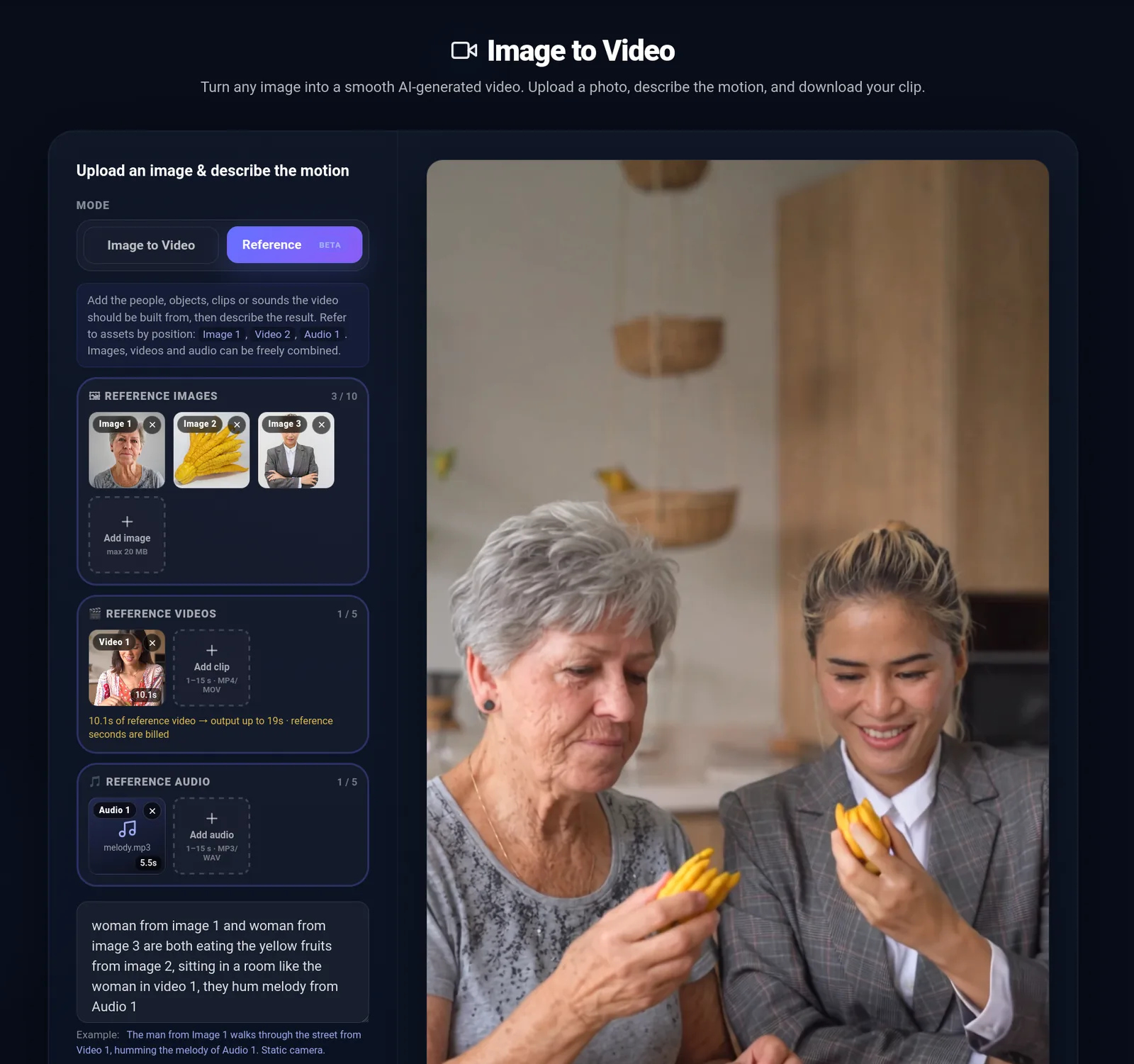
In the screenshot at the top of this post we uploaded three pictures, one short clip, and one audio file:
- Image 1: an older woman
- Image 2: a bright yellow fruit
- Image 3: a younger woman in a grey suit
- Video 1: a woman sitting and talking in a room
- Audio 1: a short hummed melody
Then we typed:
woman from image 1 and woman from image 3 are both eating the yellow fruits from image 2, sitting in a room like the woman in video 1, they hum melody from Audio 1
The result is on the right side of the screenshot. Both women sit at one table, each holding the yellow fruit, in a room like the one from the clip. None of the photos showed them together. The AI combined them.
Why this is a big step up
- Mix people and objects from different photos into one scene.
- Borrow movement and setting from a video clip, so your characters behave like the people in it.
- Give characters a voice with an audio file, so they talk or sing exactly what you want.
- Create scenes that never existed, without any photo editing.
Tips for good results
- Point by number. Write “Image 2” or “Video 1” so the AI knows which file you mean.
- Keep it simple. One or two sentences that say who does what, and where.
- Use clear pictures. A sharp photo of a face or an object gives a better match.
- Keep clips short. The maximum video length is reduced when you use a reference video, and reference seconds are billed, so only upload the part you really need.
Which mode should I use?
- You have the perfect photo and just want it to move: use Image to Video.
- You want to combine things, copy motion, or add a voice: use Reference.
Try it at facy.ai/image-to-video. Reference mode is in beta, so it is a good time to experiment.
Leave a Reply